 United States

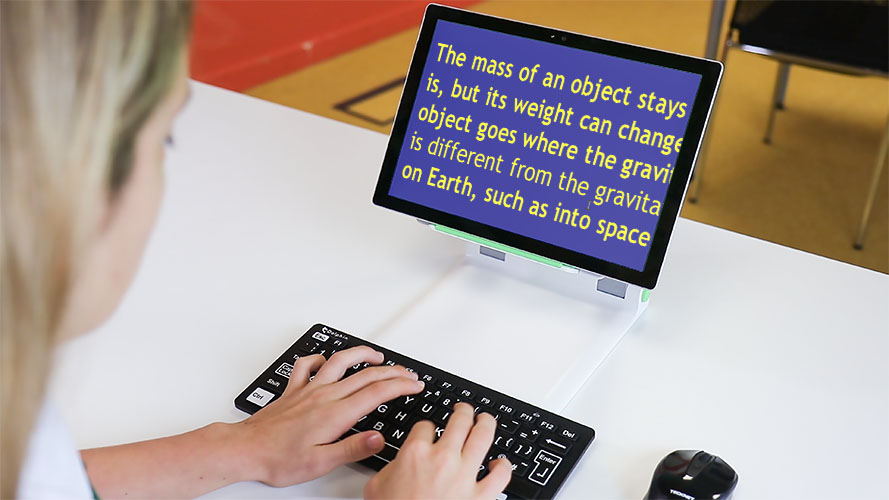


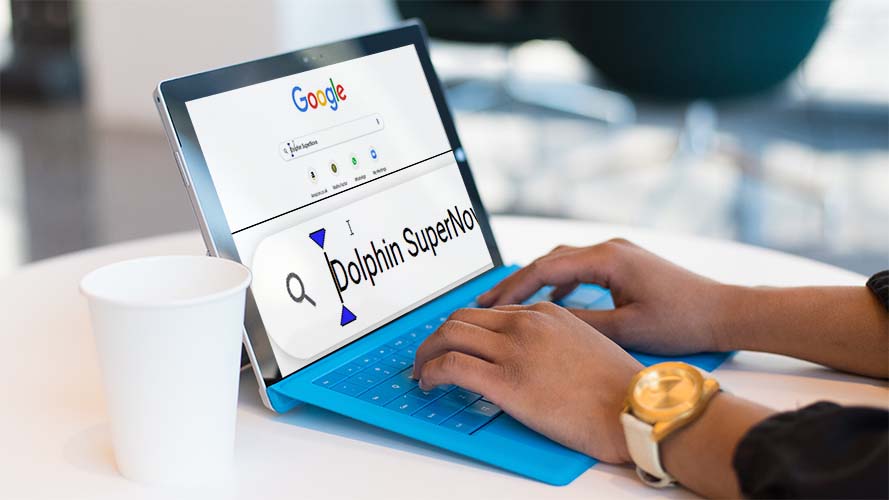
Screen magnifier and screen reader with speech and braille support.
SuperNova enables people with visual impairments to read, work and study on Windows computers.
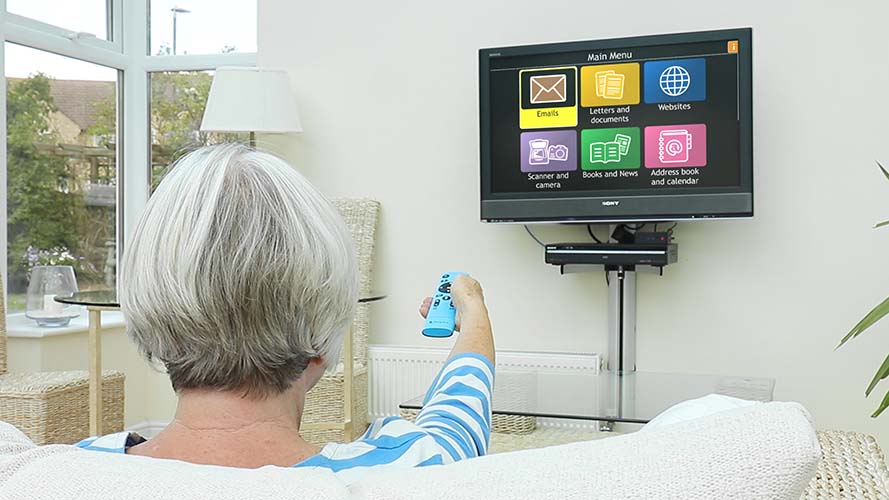
User-friendly tech that works on a range of devices, including your own TV.
GuideConnect makes it easy to stay independent and connected when you're living with sight loss.
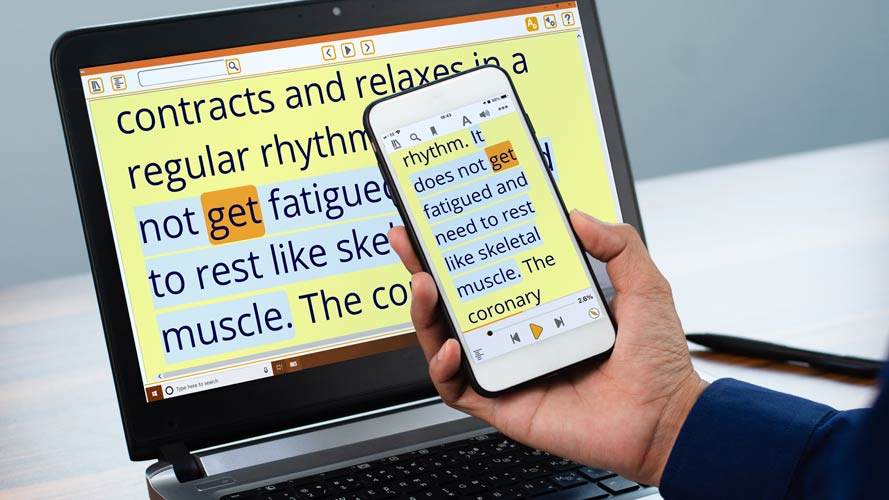
Accessible reading for people with vision impairments or neurodiversities such as dyslexia.
Provides free access to over 40 accessible libraries and a truly customisable reading experience.
Succeed at work with reliable magnification and screen reading for Windows programmes and in-house systems.
Portable assistive tech kit for students with low vision. Customise and convert classroom material to read and learn independently.
Meet your organisation's accessibility goals with reliable assistive technology for office and home working.
Quickly convert Word documents into a range of accessible formats including braille and large print.
Dolphin designs and builds software that empowers people who are blind or partially sighted to read, work and communicate.
We are committed to creating assistive technology that makes workplaces, classrooms and the home accessible and usable for people with visual impairments.
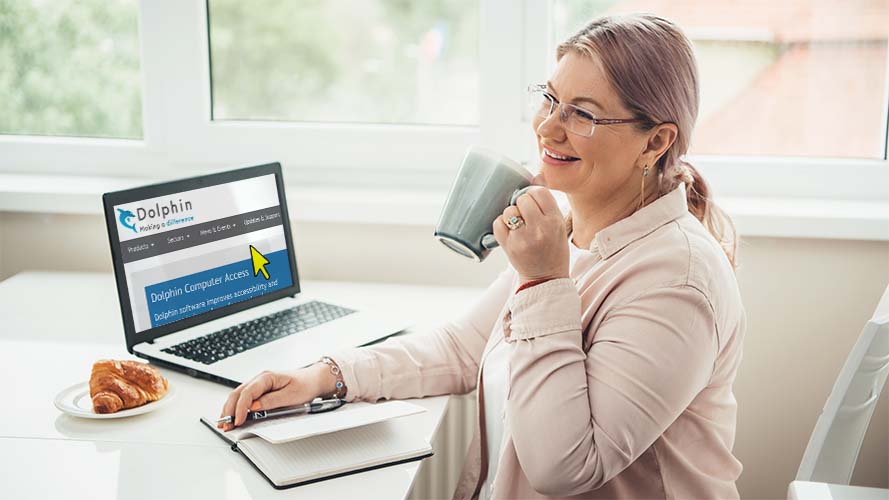
Products and expertise to aid learning, reading and communication. For students of all ages who are visually impaired.
Empower your employees to reach their full potential at work and provide customers with a truly accessible brand experience.
Find the best assistive technology, advice and training to help your service users stay independent at home.
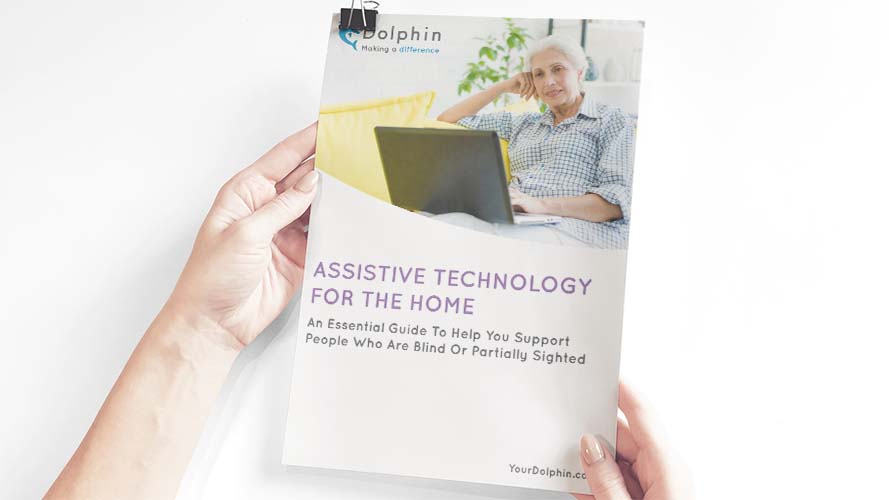
Essential information to help you find the right assistive technology for students or employees with visual impairments.
If you live outside the UK and would like to purchase Dolphin software, please speak directly to one of our trusted assistive technology dealers in your local region. They will advise you on the Dolphin software available.
Use Dolphin Developer Services to significantly improve your company's accessibility. Integrate Dolphin technology into your own products, to make them more accessible to customers with visual impairments and other print impairments.
We offer the expertise and technology to make your organisation's self-service kiosks accessible to people who are blind or partially sighted.
Work with Dolphin for unparalleled access to talking book libraries around the world, and to add accessible reading technology to your product.








Dolphin works with organisations across a wide range of sectors. From accessibility champions and local sight loss societies, to national charities and international libraries. Contact us to discuss how we could work together, we’d love to hear from you.
Contact Us